

Channels
Supported channels
A “channel” in the Syllable platform is a communication mode, like voice or webchat.
Syllable currently supports five primary channels to ensure you can meet your customers wherever they are:
- Voice: Real-time phone conversations via STT and TTS.
- SMS: Text-based messaging for mobile devices.
- Chat: Embedded chat messaging for web-based platforms.
- Email: Asynchronous support for custom domains and outbound email campaigns.
- WhatsApp: Rich media messaging via the WhatsApp platform.
Syllable provides system channels that are available out of the box:
- Freeswitch Twilio: Voice channel where you can purchase more phone numbers from Syllable’s Twilio account
- Syllable Webchat: Chat channel that automatically provides webchat channels for webchat agents
- There can be multiple channels with the same mode, for example, Twilio voice and Syllable voice channels.
Creating a channel
To create a channel, click “New Twilio channel” on the top right. Currently, you can only create Twilio voice channels on the platform. You can create all other channels using the SDK, but Email and SMS channels required additional configuration:
- Email: Use the SDK to set up your channel, then email [email protected] to verify your custom domain.
- SMS: You must start an A2P 10DLC campaign in Twilio to send texts. If you aren't using your own Twilio account, email [email protected] and we’ll help.
To create a new Twilio channel, you must add and authenticate your Twilio account.
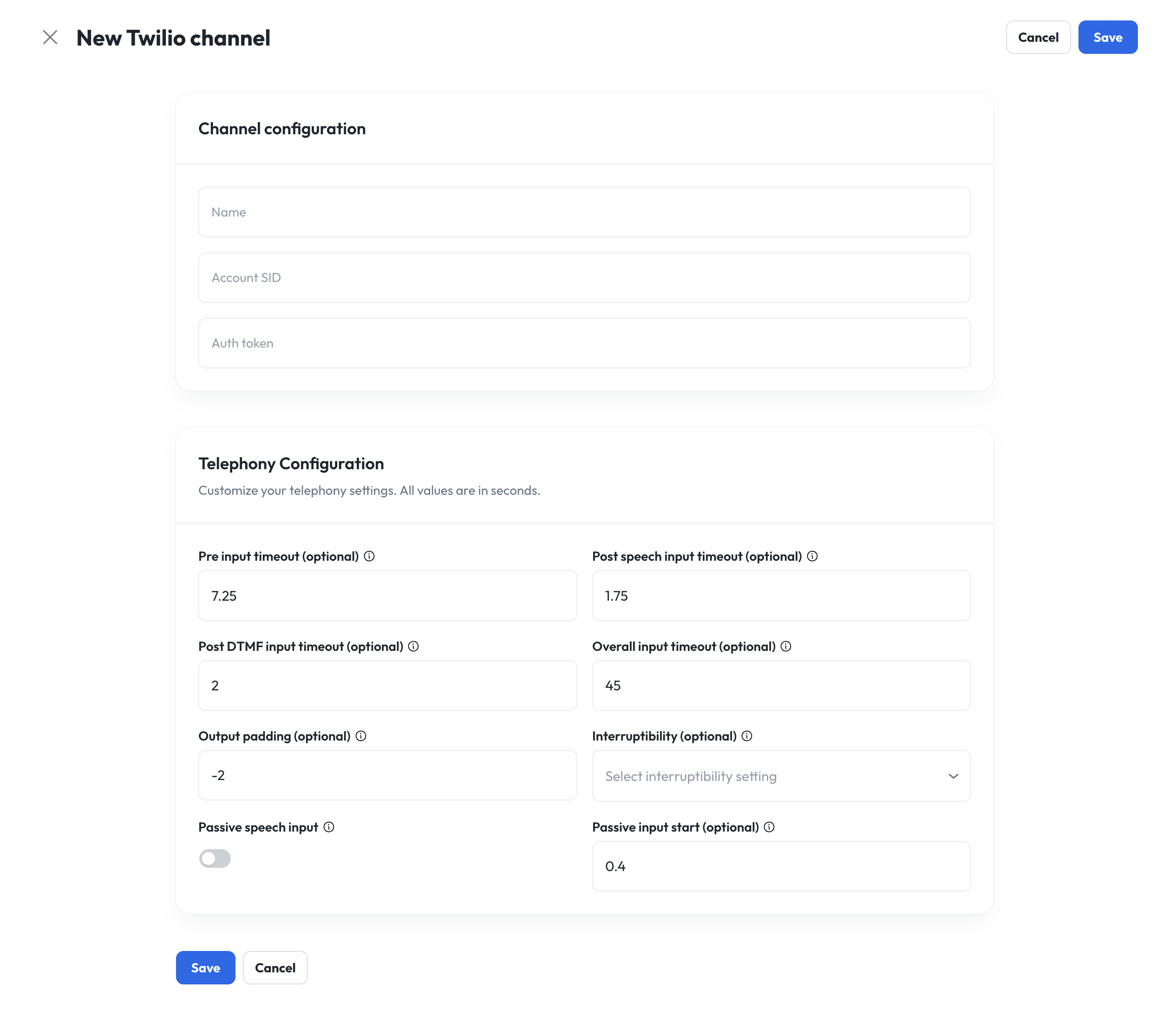
Channel configuration
- Name: The name of the Twilio channel
- Account SID: Enter the account SID, which you can find in your Twilio account
- Auth token: Enter the authentication token, which you can find in your Twilio account
Telephony configuration
- Responsive dialogue: Enables Responsive Dialogue for the channel. See Responsive Dialogue for more information.
- Pre-input timeout: Once the agent stops talking, how many seconds the agent should wait for the user to start talking before checking in. Must be a number between 0.0 - 10.0 seconds.
- Post-speech input timeout: How long the agent should wait after detecting speech input to make sure the user is done talking. This timeout is reset every time speech input is detected. Once the timeout is reached, the agent will start thinking of a response. Must be a number between 0.0 - 10.0 seconds.
- Post-DTMF input timeout: How long the agent should wait after detecting Dual-Tone Multi-Frequency input to make sure the user is done with their selection. Once the timeout is reached, the agent will start thinking of a response. Must be a number between 0.0 - 10.0 seconds.
- Overall input timeout: How long an agent should wait overall for any input, including silence and Dual-Tone Multi-Frequency. Must be a number between 0.0 - 300.0 seconds.
- Output padding: When the agent should start listening for user input while the agent is still talking. This number is relative to the end of the agent's statement. Must be a number between -5.0 and 5.0 sec.
- Interruptibility: Controls when users can interrupt the agent while speaking.
- Passive speech input: Enables the agent to take speech input while the agent is speaking.
- Passive input start: Wait time to start passive input after start of assistant speech.
Once you’ve connected your Twilio account, you can use the phone numbers you already have in your Twilio account or purchase more numbers.
Buying phone numbers
The Syllable platform provides one free phone number with your trial. If you need more phone numbers, you can buy more from the existing channel connected to Syllable’s Twilio account or you will need to connect your Twilio account and buy more phone numbers.
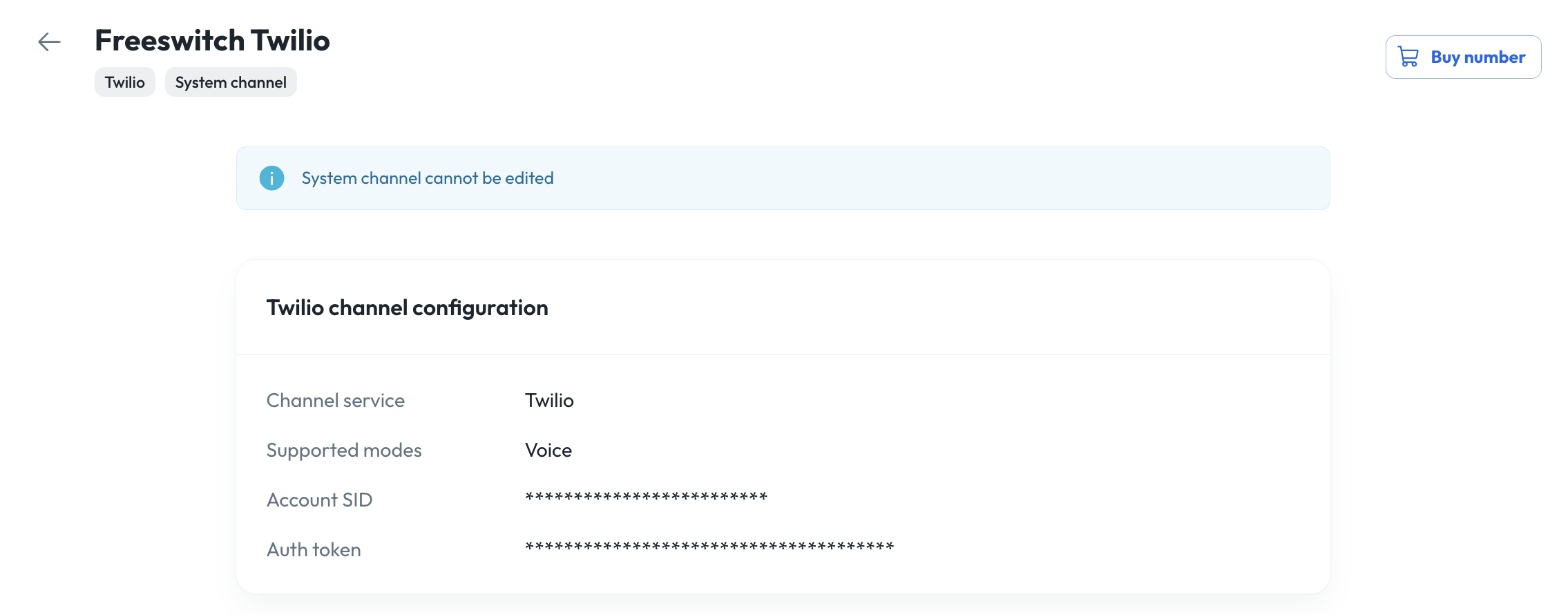
- Go to Channels in the sidenav
- Select “Channel” tab
- Click on the desired voice channel (e.g., Freeswitch Twilio)
- Click on “Buy phone number” on top right
Responsive Dialogue
Responsive Dialogue is a feature that makes conversations with your agent feel more natural. It improves turn-taking and lets callers interrupt when the agent is speaking or when the system is still thinking.
What is Responsive Dialogue?
With Responsive Dialogue turned on, the system adjusts in real time to how the conversation is going. Instead of strict back-and-forth turns, the agent can:
- Handle interruptions: If a caller speaks while the agent is talking, the system can stop the current response and switch to what the caller said without disrupting any tool calls that are in-progress.
- Reduce awkward silence: When the system needs a moment to process or execute tool calls, it can say short, configurable holding phrases like “One moment” or “Let me check that for you” so the caller knows something is happening.
- Keep the transcript accurate: What was actually said (including partial or interrupted agent speech) is reflected correctly in the conversation history.
Together, this makes voice calls feel more like talking to a person and less like waiting for a rigid script to finish.
Why use it?
- Better experience: Callers can correct themselves or change direction without waiting for the agent to finish.
- Clearer feedback: Short phrases during delays help callers understand that the system is working, not stuck.
- More natural flow: Turn-taking is determined dynamically instead of fixed “you speak, then I speak” rules.
Use Responsive Dialogue when you want voice interactions to feel fluid and responsive, especially for longer or more complex calls.
How to try it
Enabling Responsive Dialogue
- Open Channels and go to the voice channel (e.g., Twilio or SIP).
- In the Telephony configuration for that channel, find the “Responsive dialogue” setting and enable it by flipping the toggle on.
To customize holding phrases, see Bridge phrases in the Voices guide.
Target
A "target" is the specific endpoint for the agent, such as a phone number, a WhatsApp-enabled number, or a support email address (e.g., [email protected]).
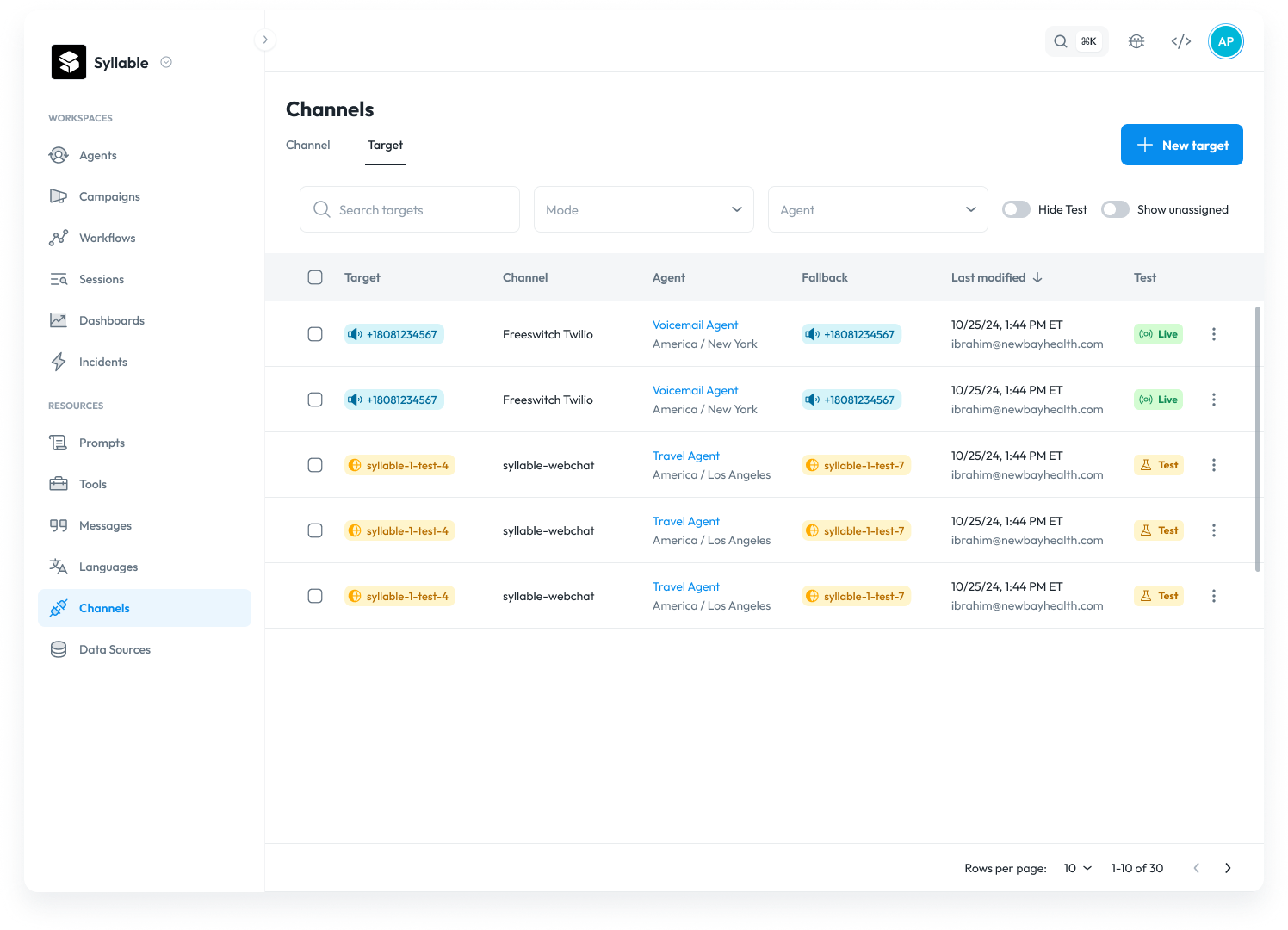
- To add a voice target, ensure that one is available in the channel (buy more if needed)
- Chat targets are created automatically when you begin chatting with an agent via the Preview panel
Creating a target
To create a target, click on Channels and select the “target” tab. Click “New target” on the top right.
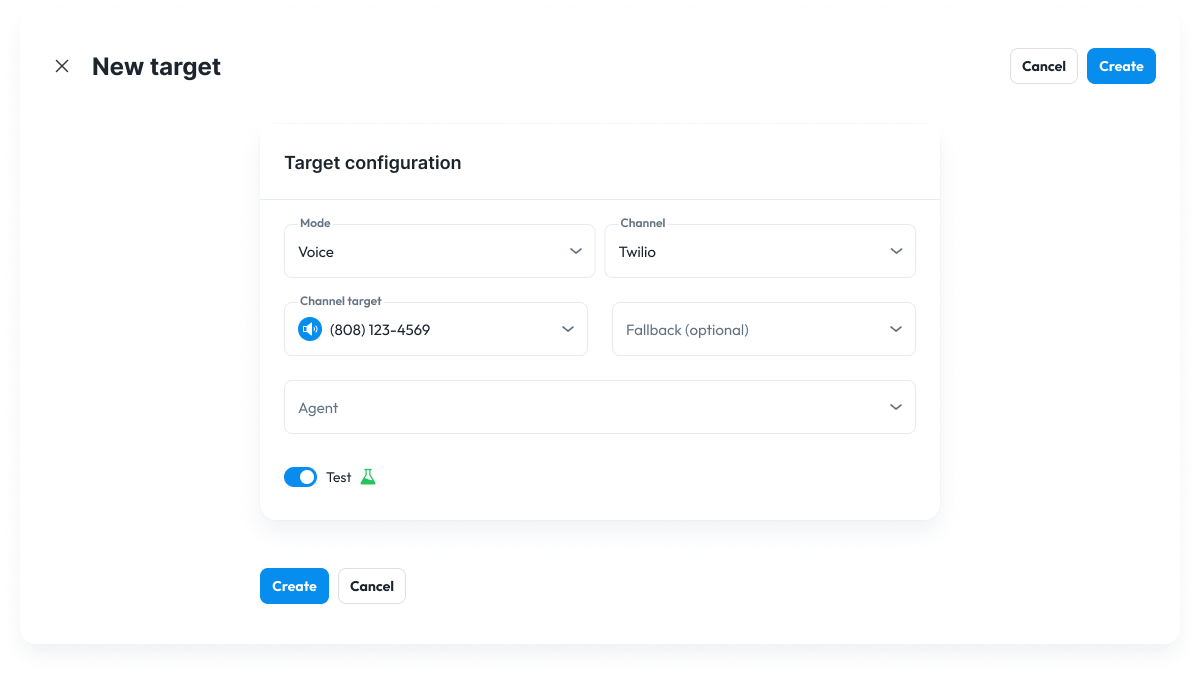
You can create voice and email targets in the platform UI. Web targets are automatically generated.
- Mode: The mode is the type of channel, like voice or web. Currently, the available options in this UI are “Voice” and “Email”.
- Channel: The name of the channel that contains the desired target (select one from the list).
- Target: The phone number that will be used for the agent (select one from the list). If there are no phone numbers available, buy a new number.
- Fallback (optional): A fallback phone number to be transferred to if the target is not available.
- Agent: The agent that should use this target. The agent must have been created before you can associate a target with it. Only one agent can be associated with a target, and vice versa.
- Test: This toggle will mark this channel as a test channel or not. If a channel is designated as a test channel, any sessions that take place on it may be omitted from dashboards, and can also be filtered out from the sessions list screen.